Getting started
By the end of this page a push carries its own coverage: a percentage and a delta on the commit, a comment on the pull request, a gate that can hold a merge, and a badge for the README. Three steps get you there, and none of them involves pasting a secret.
1. Sign in and choose where gocov lives
Sign in at app.gocov.dev with your forge account (GitHub, Bitbucket or GitLab).
The first screen asks one thing: which workspace gocov should track. On GitHub that is Install the gocov app — GitHub's own approval screen is where you pick the organization and the repositories gocov may see, and the install registers the workspace. On Bitbucket and GitLab the screen lists the workspaces (GitLab calls them groups) your account belonged to when you signed in: Create one gocov does not track yet, Join one a colleague already registered, or Open one you are already a member of. Creating takes an admin's role on the forge (org admin, group Owner, workspace administrator) — a member sees that it takes an owner and asks one. Joined a workspace since you signed in? Sign in again re-reads the list.
Only workspaces the forge itself reports for your account can be created, so there is nothing to dispute: if a colleague registered yours first, signing in simply makes you a member.
A workspace is the namespace gocov tracks — a GitHub org or user, a GitLab group, a Bitbucket workspace. Repos under it register themselves on their first upload, so the workspace is the only thing you create by hand. Choosing one takes you straight to its dashboard, where the rest of the setup lives.
2. Connect the workspace to its forge
One click, on the workspace's settings page: Install the gocov app on GitHub — where creating and connecting are the same install, so it is already done — or Grant write access on Bitbucket and GitLab. This is what turns on everything your team sees on the forge — the build status, the PR comment, the check run, diff coverage — and it is what lets your CI upload without a token: the server verifies each job's identity token against this connection. Connect your forge has the details and the exact list of what it enables.
3. Add the upload step to CI
A workspace with no coverage yet pins a Set up coverage card at the top of its dashboard, and the card holds the only thing setup asks of you: one file in your repository. Pick your language — Go, JS / TS, Java / Kotlin, Python, PHP or Ruby — and the snippet rewrites itself for that test tool; Copy snippet is the one button.
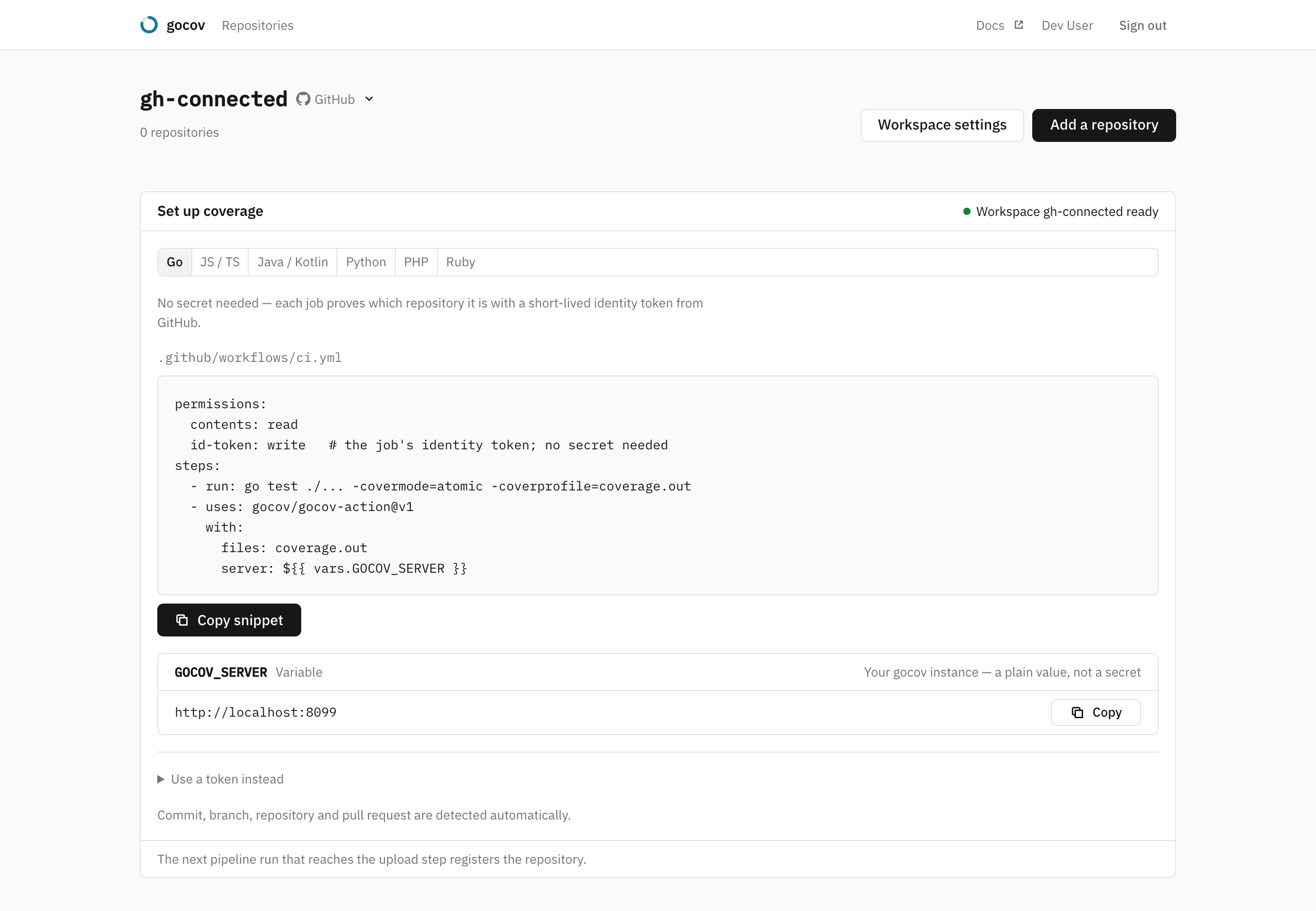
One step after your tests. For GitHub Actions, grant the job id-token: write and it needs no secret at all:
permissions:
  contents: read
  id-token: write
steps:
  - run: go test ./... -covermode=atomic -coverprofile=coverage.out
  - uses: gocov/gocov-action@v1
    with:
      files: coverage.out
The job asks GitHub for a short-lived, signed identity token that proves which repository it is; gocov verifies it
and accepts the upload. Nothing to create, nothing to paste, nothing to rotate. Bitbucket Pipelines and GitLab CI
have the same thing — oidc.audiences on the step, an id_tokens entry (or the gocov component) in the job — and
the card shows the snippet for your forge with everything filled in. The recipes for each CI and each language:
- GitHub Actions · GitLab CI · Bitbucket Pipelines · other CI systems
- Languages & formats — what to upload from Jest, JaCoCo, pytest, PHPUnit, SimpleCov, …
If your CI cannot mint identity tokens, or you would rather use a secret, the workspace has an upload token. It is
folded away in the card behind Use a token instead, which rewrites the snippet to use it; owners can reveal and
rotate it any time in workspace settings, under Uploads. Set it as a workspace-level CI variable named GOCOV_TOKEN
(secured) and pass it to the upload step; a pasted token always takes precedence over the identity token. Every recipe
above shows both forms.
The first upload registers the repo, and the line along the bottom of the card waits for it. If nothing has arrived after about twenty seconds it lists what to check on your forge and links the recipe — then you can close the tab: gocov keeps listening and the card is still there when you come back. When the report lands, the card shows the coverage that arrived and points at the two things worth doing next, setting a gate and turning reporting on.
What you have now
The dashboard lists every repo that has uploaded, with its coverage, its trend and whether its gate is passing, and anything that went wrong collected under Needs attention — a failing gate, a repo that has stopped uploading. The section is only there when something did; when more than three repos share a problem, they are gathered into one line that opens the table filtered to them. A repo without a gate says Set a gate in its row. Add a repository opens the same snippet again for the next repo in the workspace.
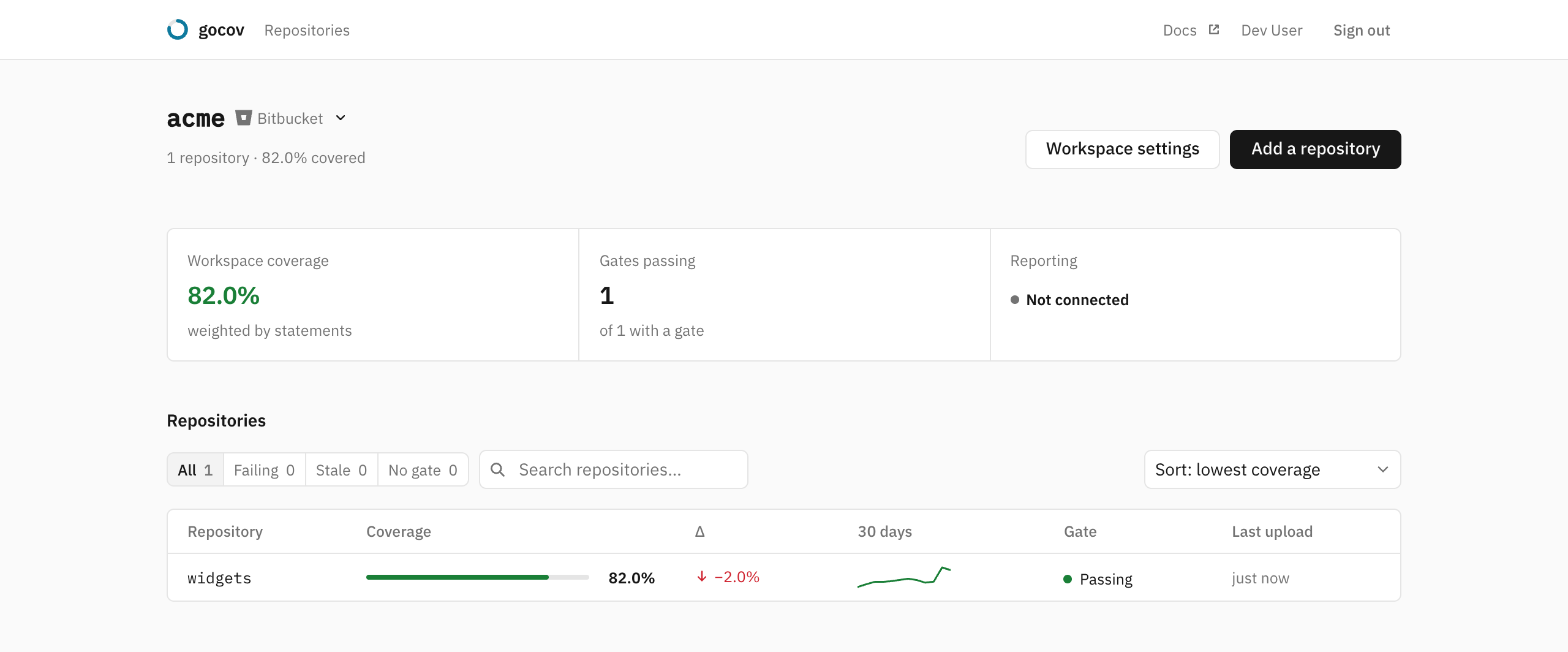
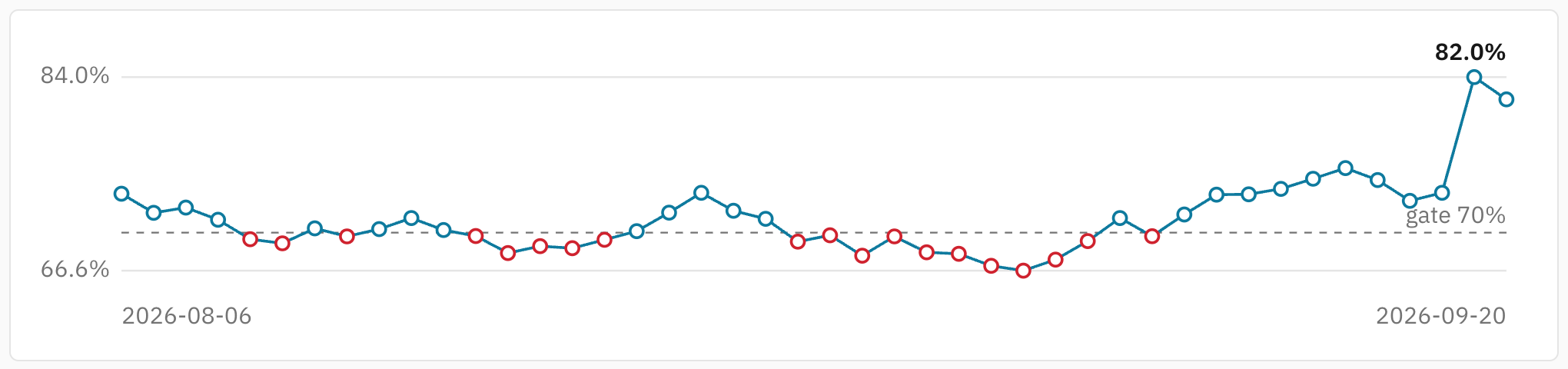
Each repo page graphs coverage over time and links every upload; each workspace links to a settings page where you can reveal and rotate the upload token (rotating kills the old one immediately), set the default branch and the gates repositories registered from then on start with, and connect or disconnect the forge.
Who sees what follows your forge: members of the workspace see its repos and nobody else does, with no invite step to manage. Who changes what follows it too: the forge's admins are the workspace's owners, the only ones who set gates, connect the forge or see the upload token — see owners and members.
Next steps
- Coverage gate — set minimums and make them block merges
- Parts — combine several CI jobs into one report per commit
- API & badge — put the badge in your README
Running your own instance
Everything above works the same on a self-hosted instance — set GOCOV_SERVER as a plain CI variable (the identity
token's audience is your instance's URL, so the card fills it in and shows the value beside the snippet) and the
snippets are otherwise identical. To try one locally, docker compose up brings Postgres and the server up on
http://localhost:8080; Self-hosting covers that and the path to a production instance.