Connect your forge
Connecting a workspace to its forge is one click, and it is where most of the product lives. Without it gocov still accepts uploads, stores history, evaluates the gate and serves the badge — but everything that reaches your team where they work goes through the forge's API:
| with a connection | without one |
|---|---|
| build status on the commit | — |
| coverage comment on the pull request | — |
| check run / Code Insights with per-file annotations | — |
| diff coverage (needs the PR's diff) | total coverage only |
| source view with line-by-line overlay | uncovered-line summary only |
| default branch detected from the forge | falls back to the workspace default |
How to connect
From the workspace's settings page, under Reporting, as a workspace owner — connecting acts for every repo in the workspace, so members see the state but not the button:
- GitHub — click Install the gocov app. GitHub shows its install screen; picking the org or account installs
the App and lands you back on gocov with the workspace connected. It is also how a GitHub workspace is created in
the first place, so a workspace set up from the first screen arrives connected. Statuses, PR comments and check runs
are authored by the app's bot identity (
gocov[bot]), so there is no credential to enter and nothing tied to your account. On the hosted service the install can even come first — installing from the GitHub Marketplace registers the workspace on the spot. - Bitbucket — click Grant write access and consent once on Bitbucket. Bitbucket has no app identity, so statuses and comments appear as the account that granted it (gocov states this at connect time). Teams with a bot account should sign the bot in and connect with it.
- GitLab — click Grant write access and consent once on GitLab (
apiscope). As on Bitbucket, posts appear as the account that granted it, so use a bot account if you have one.
When a connection breaks
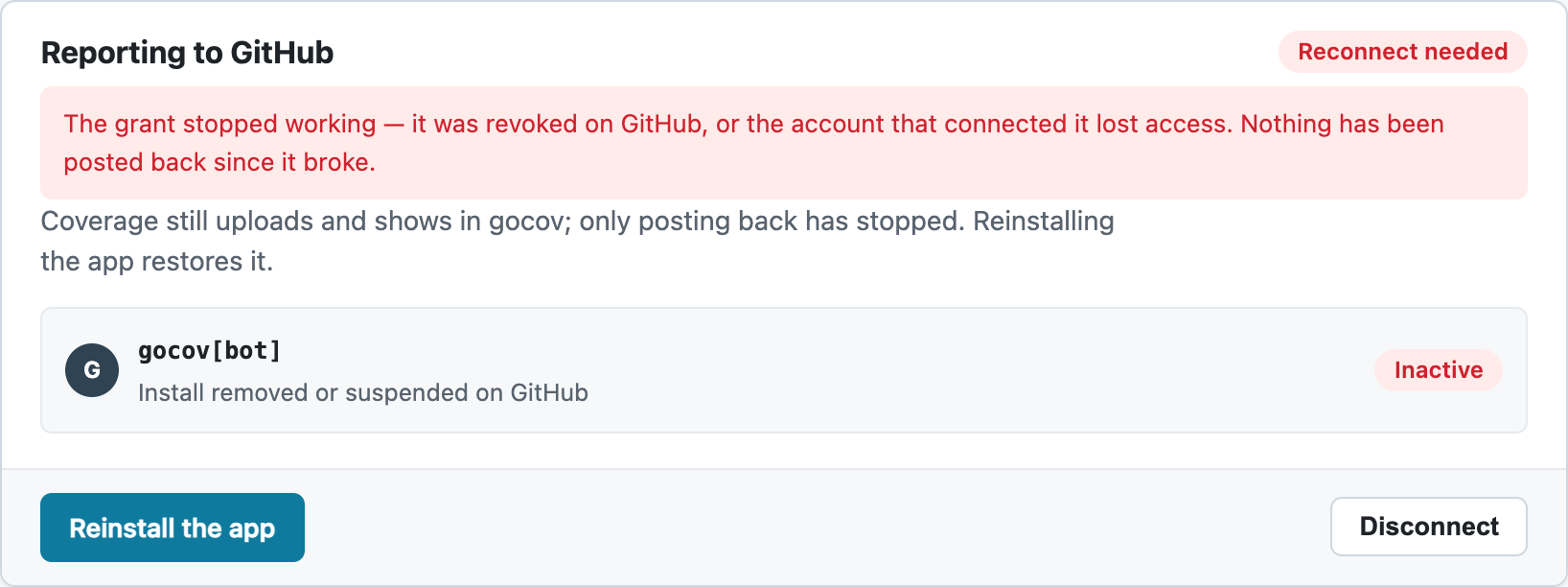
Uninstalling the GitHub App, revoking the Bitbucket/GitLab consent, or the connecting account leaving the workspace is
detected on the next upload. Nothing fails: the forge surfaces degrade to skipped, coverage keeps uploading, and the
settings page shows exactly what happened, marked Reconnect needed, with the button that fixes it (Reinstall the
app on GitHub, Grant write access again on Bitbucket and GitLab).
On a self-hosted instance
The buttons above appear once the instance is configured to offer them — a GitHub App of its own, or OAuth credentials plus an encryption key for Bitbucket/GitLab. That setup is the operator's, not yours: Forge apps & credentials.